|
|
|
How Do I Get Started?
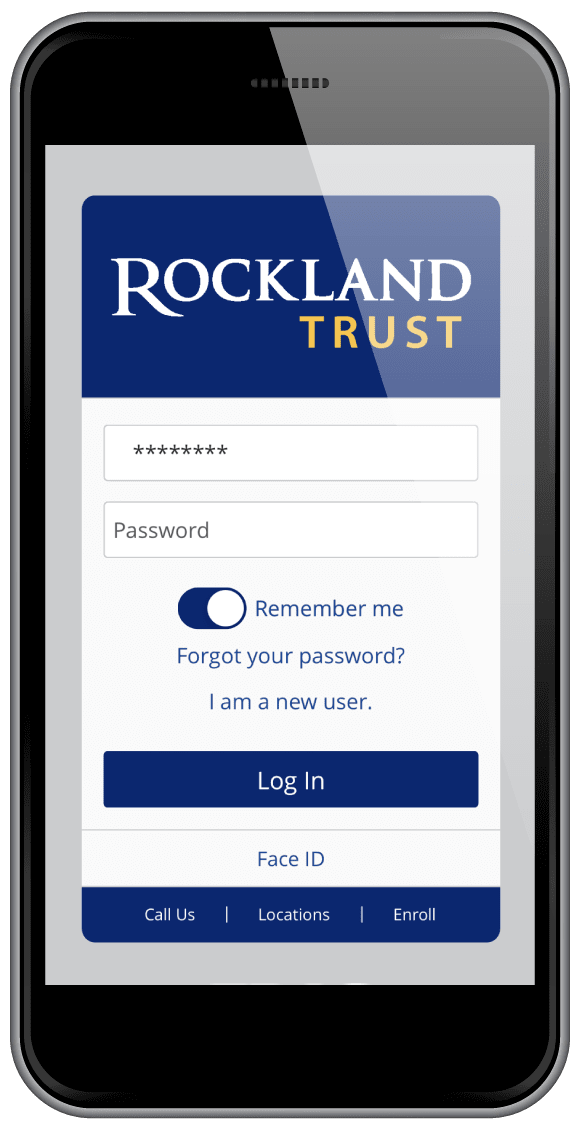
Complete a short application at any of our offices or download one. In a few days you will be notified by e-mail that your online account has been established. You will receive a temporary User ID and password (PIN) to access your account. You must have a computer connected to the Internet with a current browser that has 128-bit encryption. Once your account is established just go to www.nantucketbank.com and click on "Online Banking", enter your ID and password, and you will be connected to your bank accounts.
|
|
|
|
|
|
|
|
|
|
|
Online Banking Features
• Verify account balance and transactions for your checking, savings or money market accounts, CDs, IRAs, loans and mortgages.
• All transactions will appear in detail.
• You will have access to 16 months of account history.
• Transfer funds between your Nantucket Bank accounts.
• Make a payment to your mortgage or your loan.
• Transfer funds to the account of another Nantucket Bank customer.
• Transfer funds between your Nantucket Bank account and accounts you have at other financial institutions.
• Check Images - Click on the check number to display image of both the front and back of the check. Print a copy for your records.
• eStatements - Click on the eStatement tab and select the statement you want to print. You'll have your statements to review at the first of the month. Statements will be available for the last 24 months.
• Secure Banking - Select your own User ID and password and change them whenever you want. OnGuard will further protect your banking sessions.
• E-mail Nantucket Bank.
• Bill Pay available for Online Banking customers.
• Download account information into Quicken® QuickBooks® or Microsoft Money®.
• Print out any of the pages for additional records by selecting "Print friendly".
• Give Nicknames to your accounts.
(Quicken and QuickBooks are registered trademarks of Intuit, Inc)
|
|
|
|
|
|
|
Accessing Account Information Summary
• Current balances are displayed for all your accounts.
• The last 7 days transactions on your deposit and savings accounts are displayed when you click on the account name or the "Details" tab.
• For past account history, select dates you want to display using the pop-up calendar and click on "Search". History for the last 16 months will be available.
• Loan balance, interest history, payment due, payment date, and last payment dates are given.
|
|
OFX (Open Financial Exchange) - What better way to manager your finances - download data from your online statement into your Quicken, QuickBooks or Microsoft Money software. You must be signed up for Online Banking and have a Nantucket Bank User ID and PIN (password) for this service. Just click on the link on the Detail Accounts page or download from your Quicken, QuickBooks or Microsoft Money software for Windows or Mac.
Follow the download directions in the Help section of your Quicken or Money software. Download into QuickBooks after logging into Online Banking. First select the account in Account Detail & then select QuickBooks WebConnect. Download as often as you want to keep your finances current.
• Download Account Data
• Automatically compare download transactions to your Register
• Reconcile Transactions
• Transfer Funds between your Nantucket Bank Accounts.
|
|
Transfer Funds
•Transfer funds between checking and savings accounts that you own.
• Pay your mortgage or loans.
• Transfer funds to the account of another Nantucket Bank customer.
• Transfer funds between your Nantucket Bank Account and your accounts at another financial insitution.
• There is no charge for internal transfers, but a $2.00 fee for all external transfers.
• Internal transfers occur immediately, but external transfers usually take 2 business days.
• Please refer to the Electronic Funds Transfer Disclosure Statement. |
|
| Account Details |
| • |
Account - select the one to display |
| • |
Select the statement type: |
|
All transactions - Deposits - Withdrawals - Checks - ATM/POS - ACH or Home Banking |
| • |
Time Period - Insert dates in "From" and "To" or use calendar to select dates. |
|
(16 months history is available. |
| • |
Search by Amount or Check - Enter either account or amount and submit. |
|
|
Nickname Account
• Nickname any of your accounts that appear on Online Banking.
• Click on "Services & Preferences".
• Select "Account Preferences". Nickname your account and select Save.
• On this same page you can select the order you would like to have your accounts listed. |
|
Bill Pay
• To enroll in Bill Pay, click on the Bill Pay tab. Complete and submit. In a few days you will be notifed by email that you can now pay your bills online.
• After your Bill Pay account is established, select the Bill Pay tab. Enter payees, and begin making payments. Make single or multiple payments. Schedule future payments, or for those payments that are the same every month, set up recurring payments.
• For additional information go to Bill Pay Online. |
|
Printing
To print any of the pages from your Online account, click on "Printer Friendly" and use the print function on your computer. |
|
Security
NCR’s Consumer Banking Solution, used by Nantucket Bank, takes full advantage of the security provided by OnGuard, your web browser and NCR’s web server. Your transactions are encrypted as they travel over the Internet. Anyone trying to access your communications will not be able to decipher them. In addition, your account is protected by your User ID and complex password or PIN (Personal Identification Number). No one can use your account without knowing both your User ID and your PIN. It is important to protect this information to maintain security of your accounts. |
|